SOMweb
The secure Smart Home solution
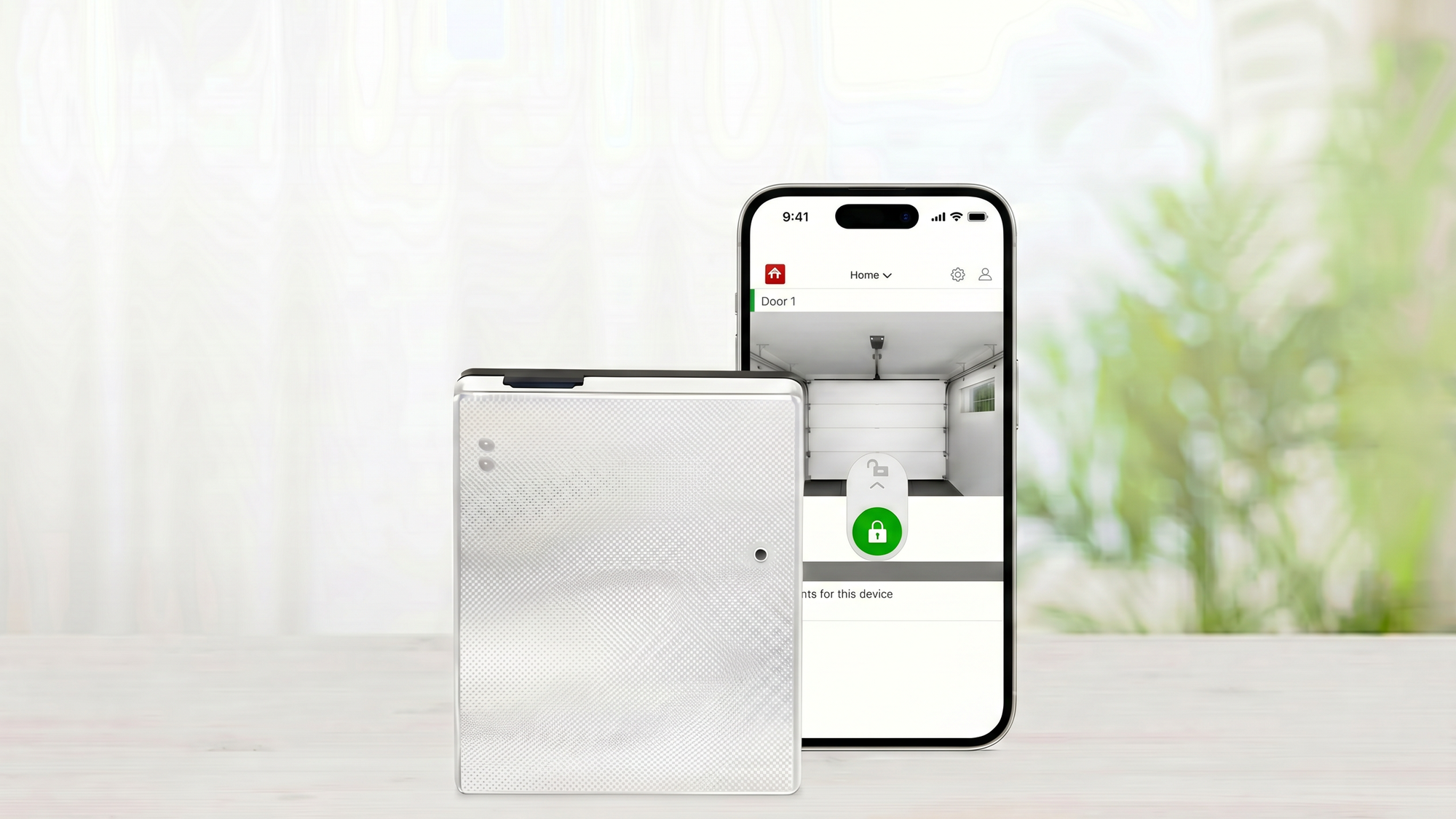
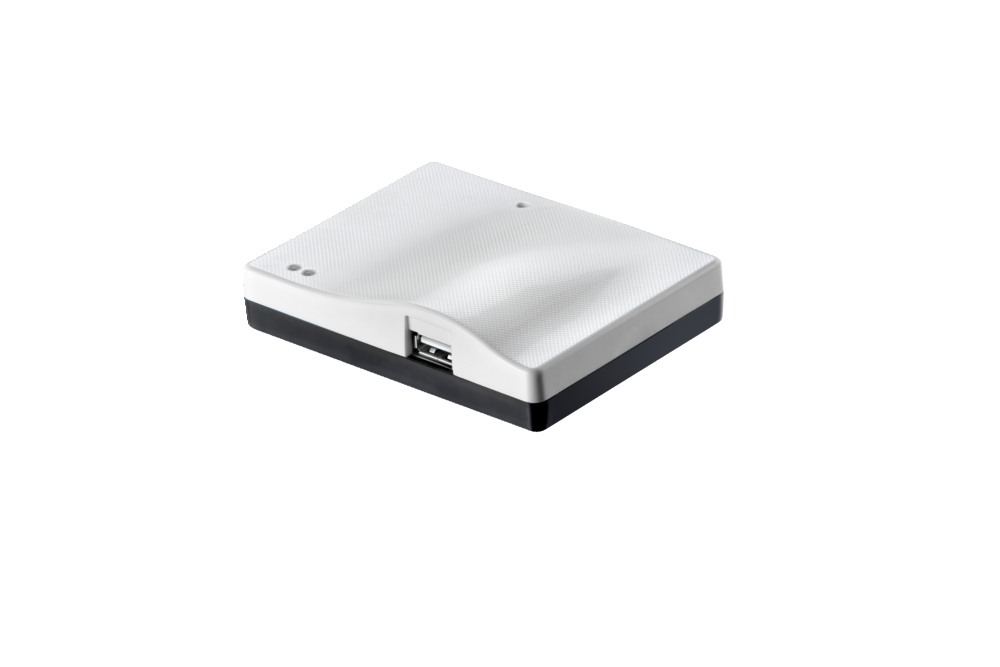
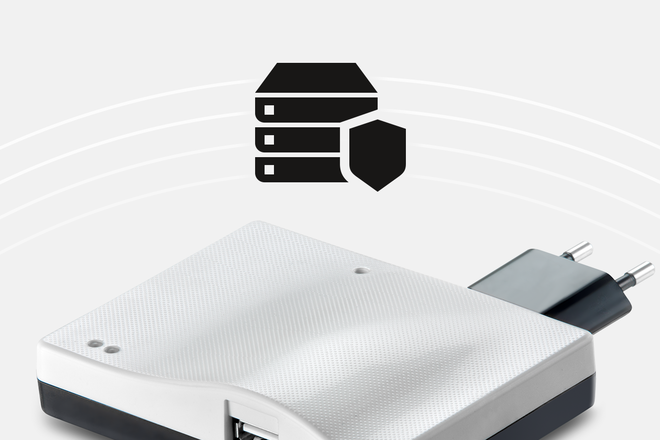
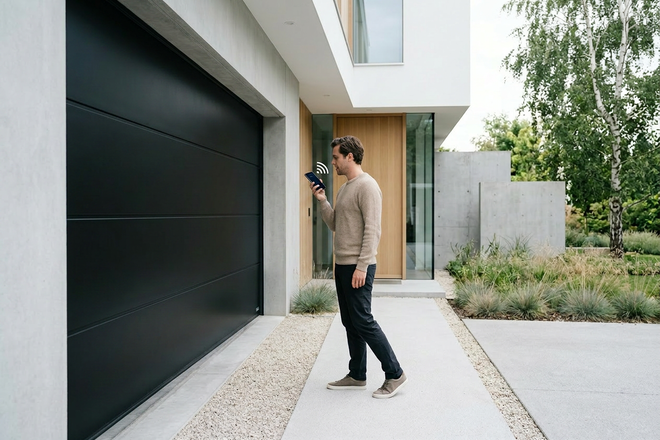
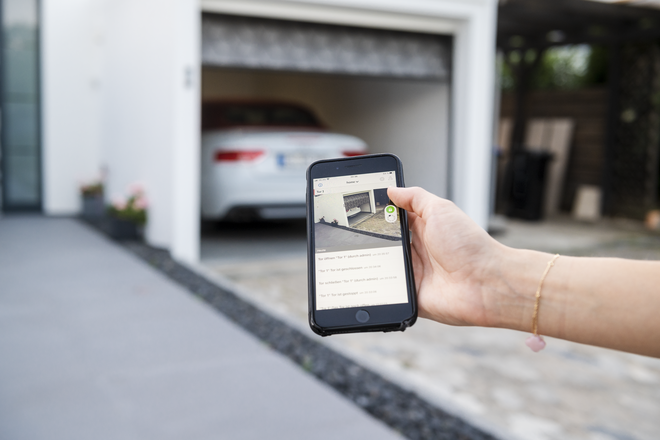
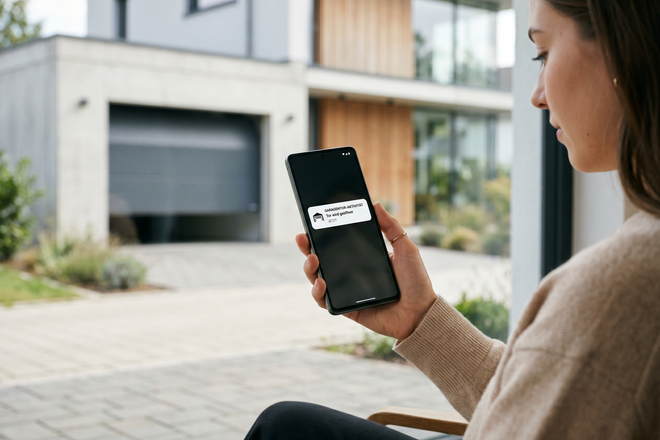
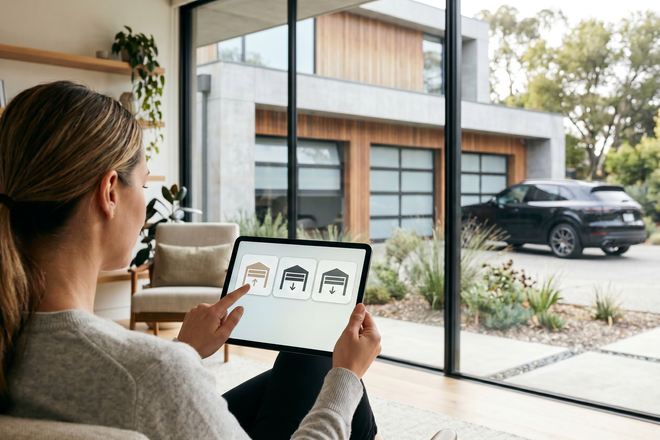
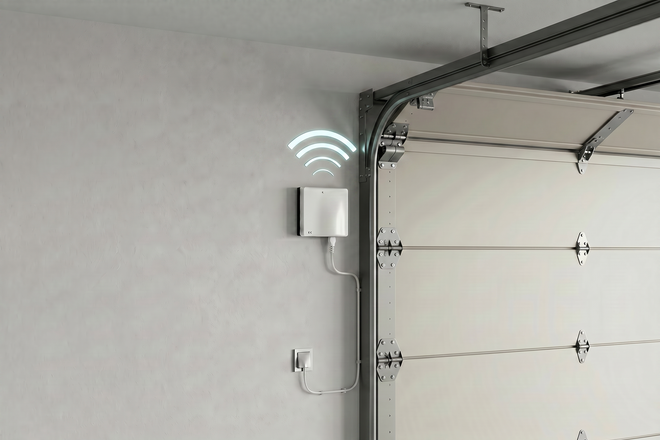
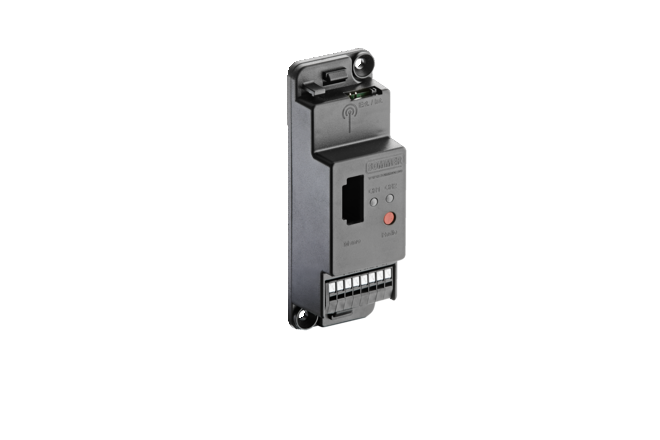
SOMweb is the secure Smart Home solution where your data stay in the garage. This system enables you to control operators via a smartphone app or web browser. The data are safe, as they are not saved on external servers, but quite literally remain at home.
Compatibility
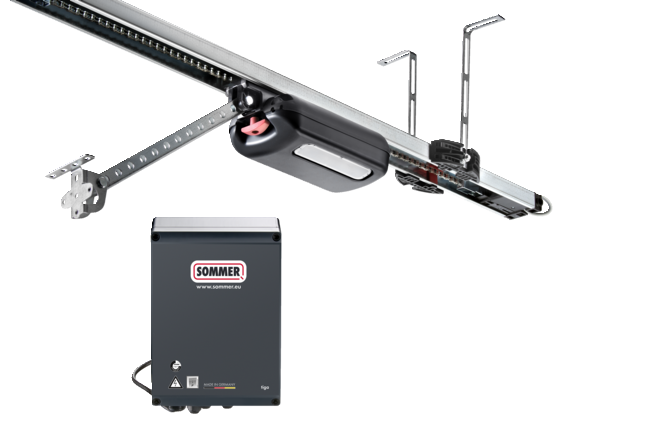
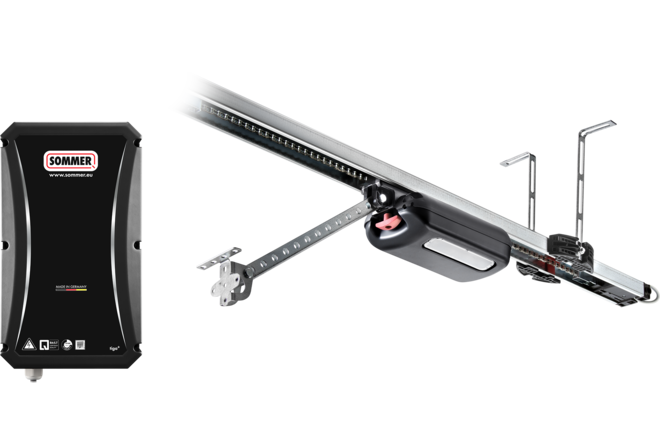
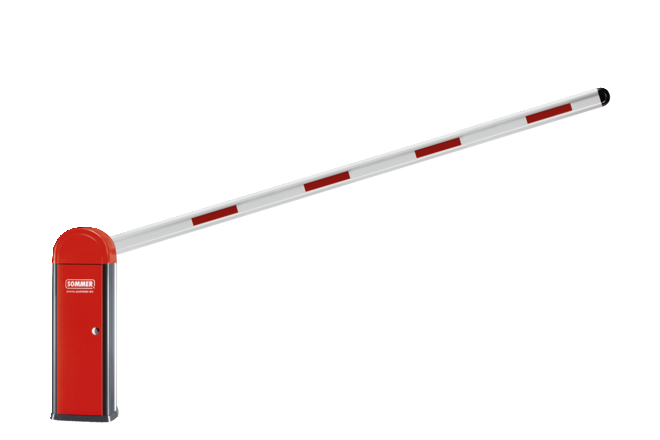
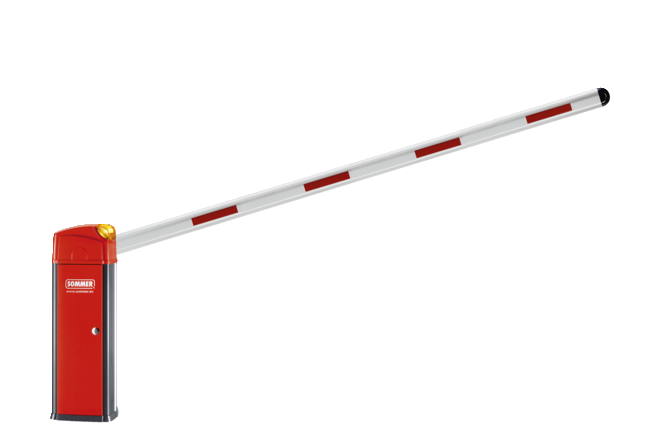
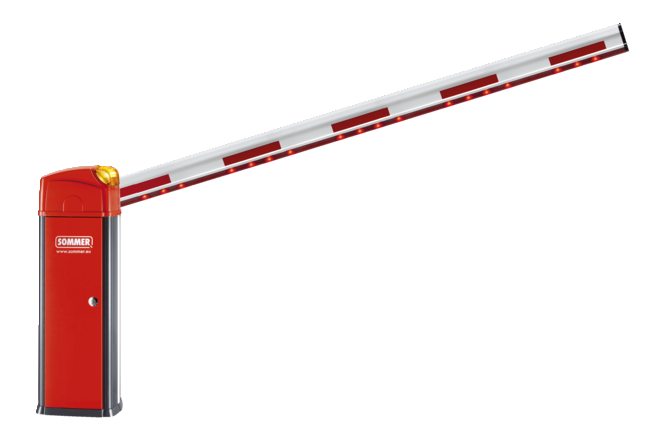
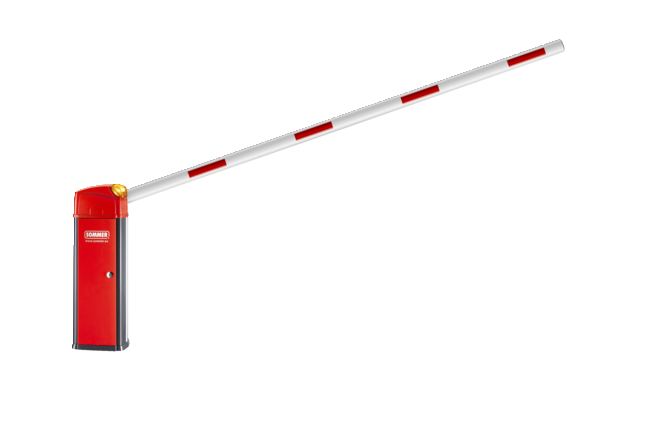
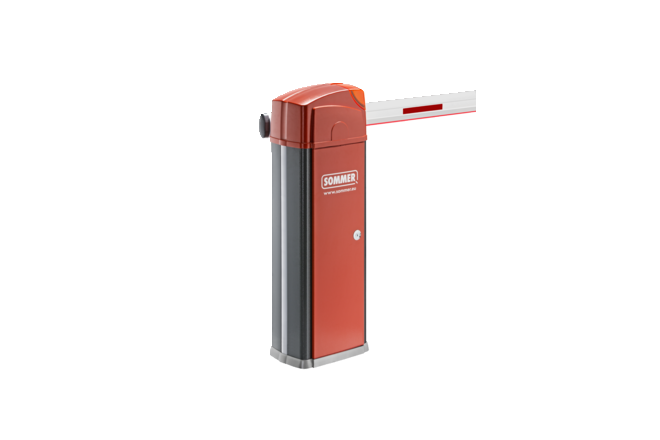
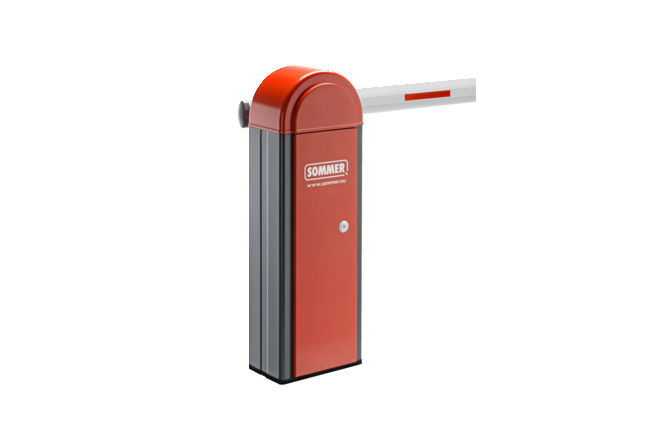
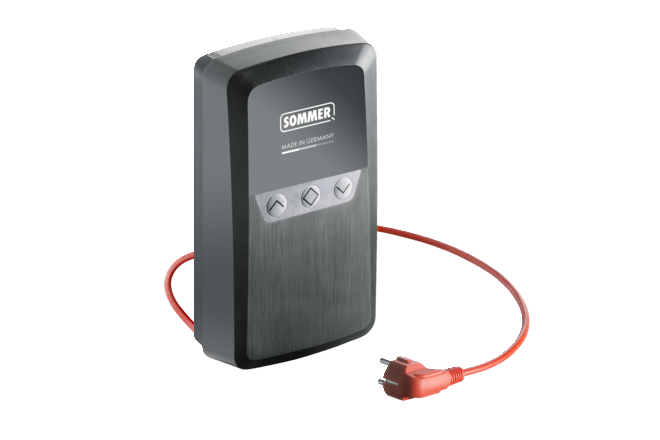
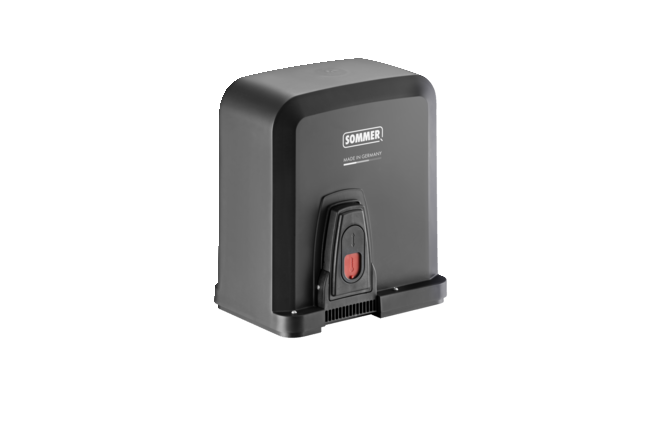
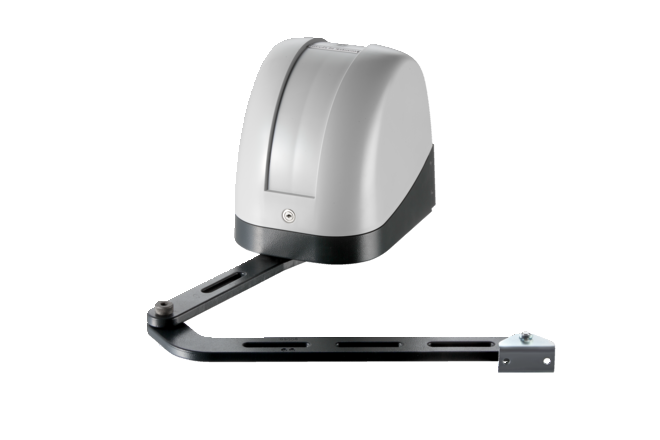
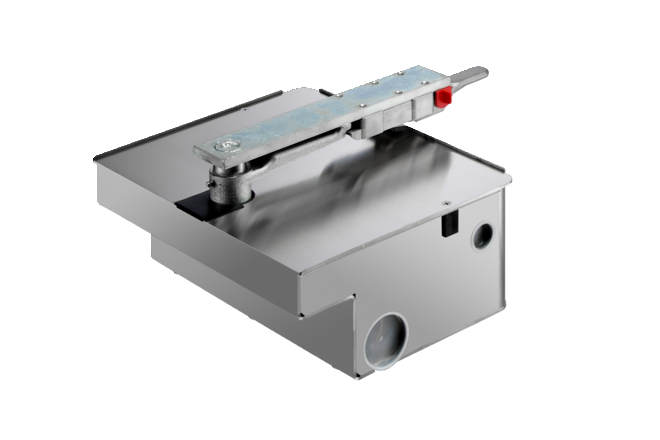
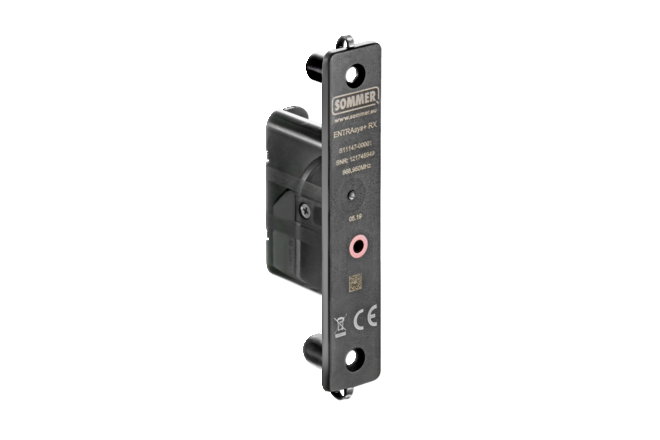
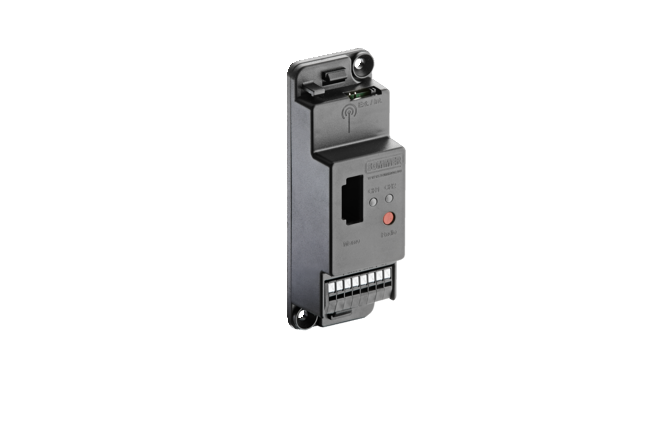
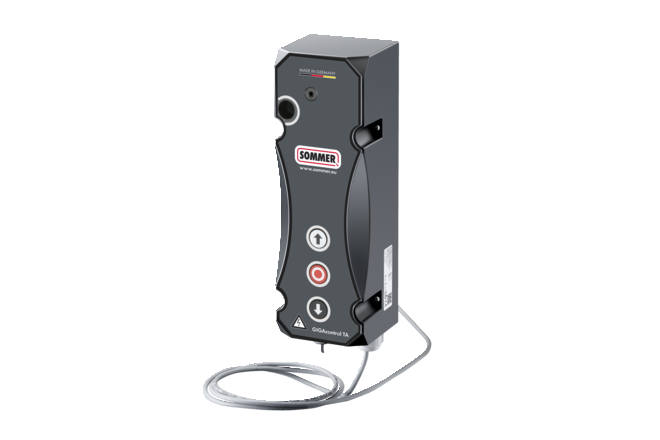
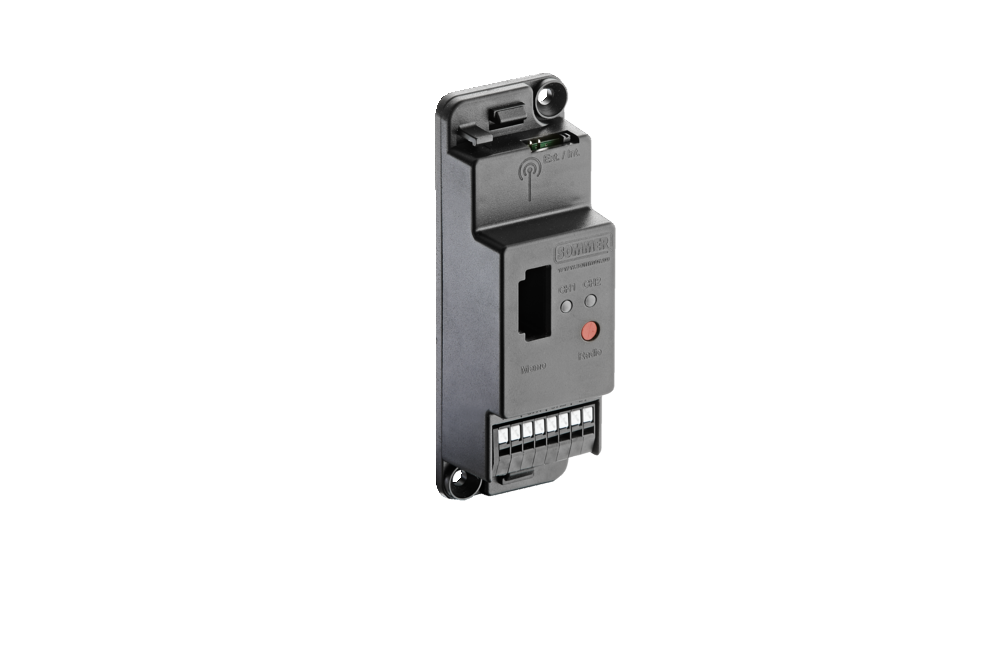
The SOMweb is compatible with the following products.
Note: The operator can only be operated with a connected safety photocell.
Upgrade Options:
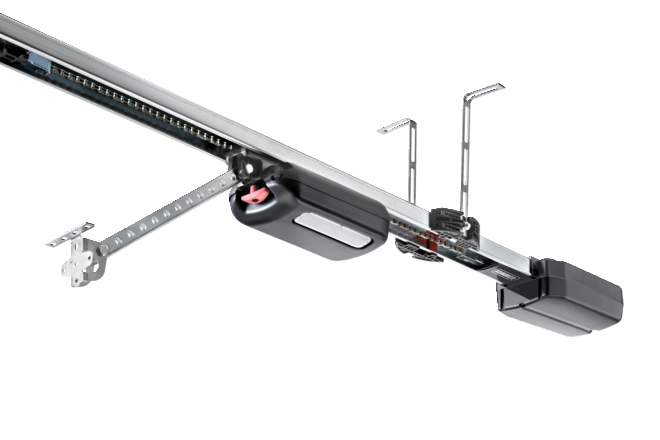
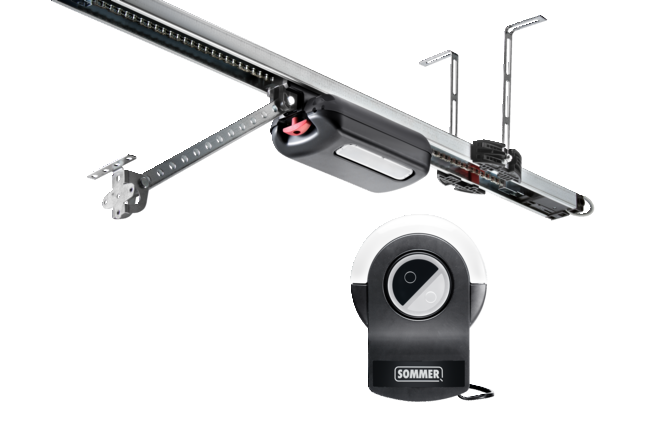
With the SOMcom 2.1, numerous SOMMER operators and control units can be easily integrated into SOMweb.
Compatible SOMMER systems:
- twist 200 E / EL / M / ML
- twist XL / 350
- RUNner / SP900 / S900
- STArter
- duo Vision
- marathon SL
- GIGAControl A
Integration of Third-Party Operators
You can also easily connect third-party operators with a push-button input:
Via SOMcom 2.1, these can also be integrated into SOMweb and centrally controlled.
SOMweb app
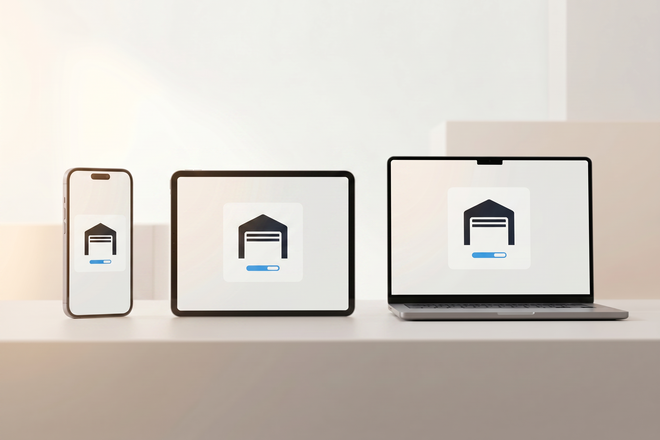
Free apps for the Android operating system and iOS are available for download from Google Play and in the App Store. The app is compatible from Android 4.4 and from iOS 9.1.
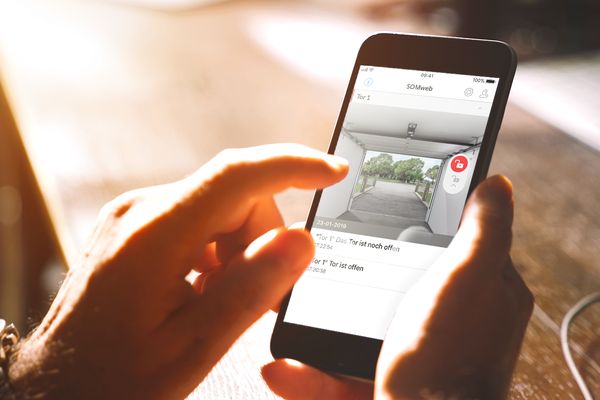
Intelligent control
Download the SOMweb app and install it on your smartphone or tablet conveniently via Google Play or the App Store.
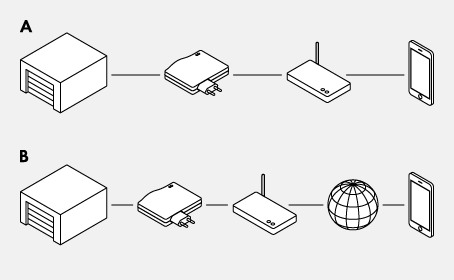
Home network or Internet access
SOMweb is equipped with a server and establishes a direct connection between a WiFi-enabled device and the operator. For operation with a LAN cable, an optional LAN adapter for the USB port is required.
Smart Home integration
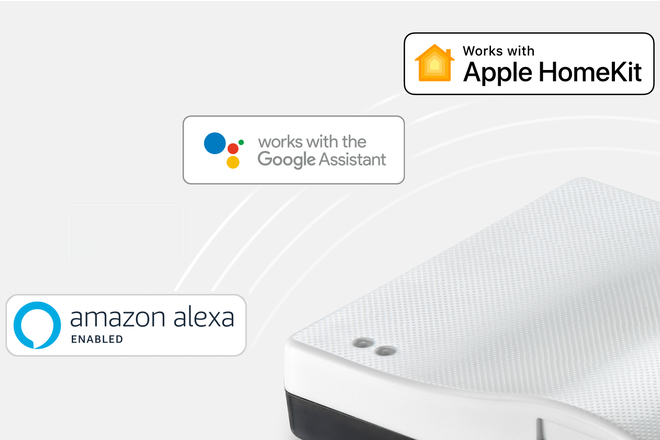
Integrate the SOMweb into your Smart Home and control your garage doors via your usual system.
Amazon Alexa
The garage door can be easily operated via voice control. With Amazon Alexa integration, it can be opened, closed, or checked – no additional app needed. A smart solution for more comfort and control in everyday life.
Apple HomeKit
HomeKit technology allows the use of the Apple Home App to create set-ups combining various devices. For example, to switch the hall light on automatically when you open the garage in the evening or query the door status with voice control via Siri.
- The SOMweb allows you to control garage doors via Siri voice control
- The Apple Home App allows location-dependent control
- We recommend iOS 11.0 or higher for control
- Not compatible with ENTRAsys+ RX front door receiver
Google Assistant
Control operators using voice commands via Google Home or the Google Assistant. Open and close your door with a voice command or query the status of your door with Google voice control.
User management
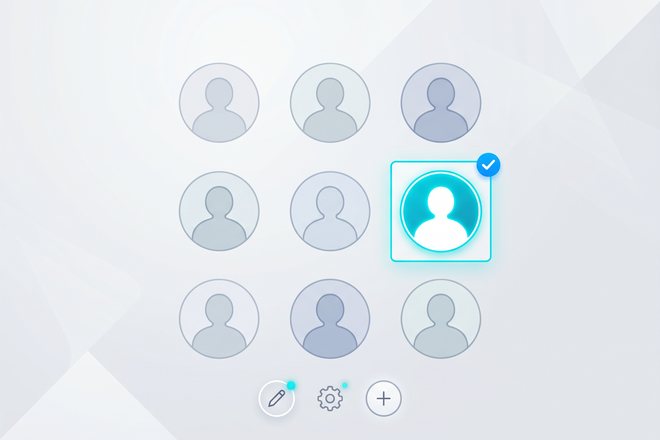
With the comprehensive user management system and access control, you can define time- or location-dependent access to doors for an unlimited number of users.
Time
Limit access for users by week, per day or by the exact hour.
Location
Specify whether the user only has access within the local network or also via Internet.
Doors
Specify which user can operate which door.
Calendar
The calendar shows you when a door was opened and by whom.
Initial operation of the SOMweb app
FAQ
Frequently asked questions and answers
The SOMweb installation and operating manual can be downloaded from the download portal.
Note that the SOMweb must be in a location where it is both within the range of the WiFi router and within the radio range of the operator.
Check that your operator is compatible with the SOMweb. Go to Compatibility
Check that the SOMweb is connected to your WiFi network. Also, identify and eliminate any sources of interference which may disturb WiFi radio operation .
If the SOMweb is connected to the correct network, check your photocell. If it is defective, it must be repaired or replaced in order to use the SOMweb. Also, check that your operator is compatible with the SOMweb. Go to Compatibility
Check that the SOMweb is connected to your WiFi network. Also, identify and eliminate any sources of interference which may disturb WiFi radio operation .
If the SOMweb is connected to the correct network, check your photocell. If it is defective, it must be repaired or replaced in order to use the SOMweb. Also, check that your operator is compatible with the SOMweb. Go to Compatibility
The Smart Home solution SOMweb can only be operated if a photocell is connected. You can find a list of all compatible operators under Compatibility.
SOMMER guarantees all users that their SOMMER drives, which are already compatible with SOMweb today, will be able to be integrated into a Matter network in the future.
Changing the password
You can change your password in the user management of the app.
Resetting the password
For security reasons, if you have forgotten your SOMweb password, carry out a hardware reset (restoring the factory settings) and then put the SOMweb into operation again. A hardware reset deletes all settings which have been made. The Admin and users will then no longer be able to locate the SOMweb. The SOMweb must be reinstalled and connected to the end devices.
You will find the Reset button on the front of the SOMweb. Press and hold the Reset button using a thin (but not sharp) object until the Status LED blinks red. The factory settings have now been restored.
You can find more information in the installation and operating instructions.
To find out how to add devices to the Apple Home App, see Apple FAQs.
Open the SOMweb app and go to the Settings. Select the menu item “Apple HomeKit” and follow the instructions. Click Reset.
To find out how to add devices to the Apple Home App, see Apple FAQs.
Check whether the network LED on the SOMweb lights up continuously in blue. If this is not the case, carry out a reset of the network and the SOMweb.
Open the WiFi settings on your smartphone, tablet or PC. Select the SOMweb hub and start the application via the SOMweb app. Confirm the query "Has Apple HomeKit already been installed?" with "Yes."
Check that the SOMweb is logged in to the same network as your mobile end device with the Apple Home App. Also, make sure that you did not skip a step during installation of your SOMweb. You can also read on the Apple website how a device is added to the Apple Home App.
To find out how to add devices to the Apple Home App, see Apple FAQs.
Read the Apple instructions on enabling Smart Home devices for further users. Apple FAQs.
Yes, you can. But first, you need to integrate the SOMweb into an existing network; to do this, simply carry out the standard installation procedure. Then you can select “WiFi mode stand-alone” in the settings of the SOMweb app under the menu item WiFi.
The Google Home password is used for authentication of a voice command when using Google Home. If you do not use Google Home, you can enter “1234” as the password, for example.
There is no longer an applet available for integrating SOMweb with IFTTT. However, integration with Apple HomeKit, Google Assistant, or Amazon Alexa is still possible via the SOMweb app.
Open the Amazon Alexa app and search for the "SOMweb" skill.
Enter your UDI (found on the back of your SOMweb or in the SOMweb app settings), username, and password.
All doors/devices configured in the SOMweb app will be transferred to the Alexa app and can be set up for voice control.
Your SOMweb is already enabled for “Google Assistant.” To activate the Google Assistant, please follow the instructions from Google. Go to instructions
We recommend our IP cameras for use inside or outside. Go to IP cameras
Is my existing IP camera compatible with the SOMweb Smart Home solution?
You can find a list of compatible IP cameras under IP camera compatibility overview.
You can find a list of compatible USB Ethernet adapters in the download portal
- An unauthorised device is attempting to connect to your SOMweb in Apple Home.
- One of the iPhones/iPads connected to the SOMweb has not been updated to iOS version 16.5.1 or higher.
- One of the iPhones/iPads connected to the SOMweb has the new Home architecture, while the other is still working with the old architecture. (https://support.apple.com/en-gb/102287)